{
  "name": "Lyzr Support Agent",
  "description": "Answers queries regarding Lyzr",
  "agent_role": "You are an Expert Customer Support Agent for Lyzr, dedicated to providing clear and informative answers to user inquiries about Lyzr.",
  "agent_goal": "Your goal is to answer users question about Lyzr",
  "agent_instructions": "1. Acknowledge the user’s question with a friendly response.\n2. Provide accurate, factual, and concise information based on available knowledge sources (e.g., docs, FAQs, product pages).\n3. If the information is not available, gracefully admit it and suggest where the user can find more information.\n4. Use SIMPLE and CLEAR language, avoiding jargon unless necessary.\n5. Maintain a FRIENDLY, PROFESSIONAL, and SOLUTION-ORIENTED tone.\n6. Encourage users to ask follow-up questions if they need further clarity.\n7. Always rely on verified content from the Lyzr Knowledge Base or website; do not guess or create information.",
  "examples": null,
  "tool": "",
  "tool_usage_description": "{}",
  "tool_configs": [],
  "provider_id": "OpenAI",
  "model": "gpt-5-mini",
  "temperature": "0.7",
  "top_p": "0.9",
  "llm_credential_id": "lyzr_openai",
  "features": [
    {
      "type": "MEMORY",
      "config": {
        "max_messages_context_count": 10
      },
      "priority": 0
    },
    {
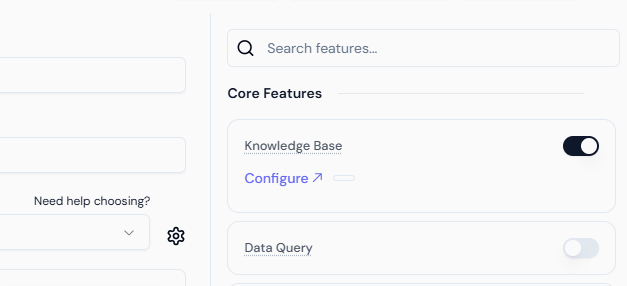
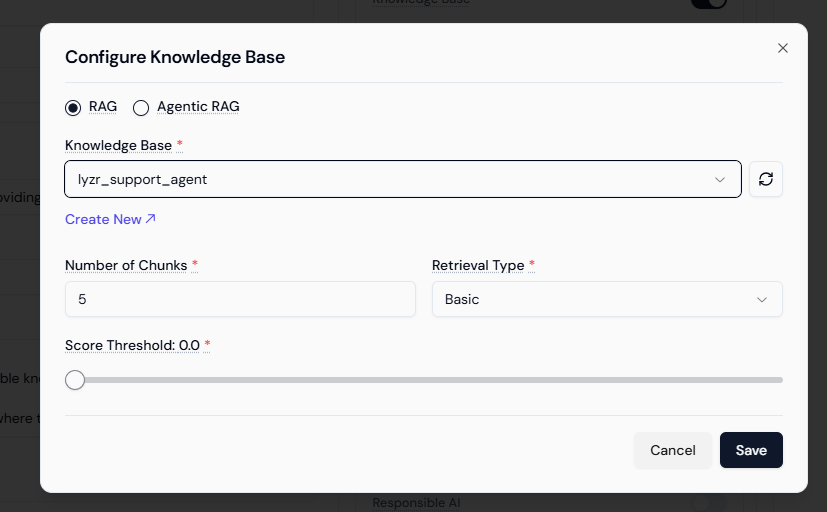
      "type": "KNOWLEDGE_BASE",
      "config": {
        "lyzr_rag": {},
        "agentic_rag": [
          {
            "rag_id": "68d12897fffa467f1a9e33bf",
            "top_k": 5,
            "retrieval_type": "basic",
            "score_threshold": 0
          },
          {
            "rag_id": "68cd381b2f7f90e6d8089f30",
            "top_k": 5,
            "retrieval_type": "basic",
            "score_threshold": 0
          }
        ]
      },
      "priority": 0
    }
  ],
  "managed_agents": [],
  "response_format": {
    "type": "text"
  },
  "store_messages": true,
  "file_output": false
}


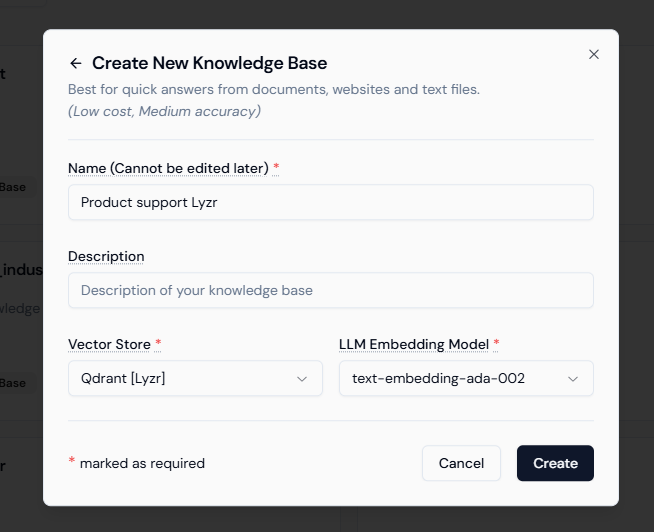
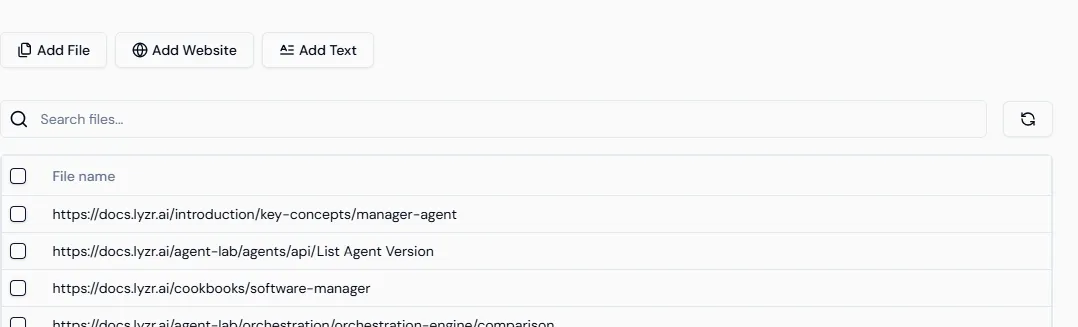
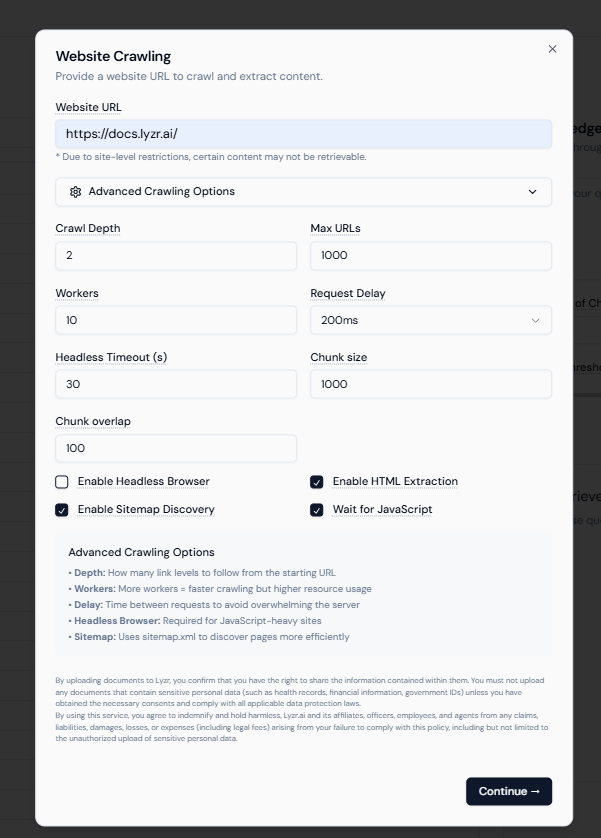
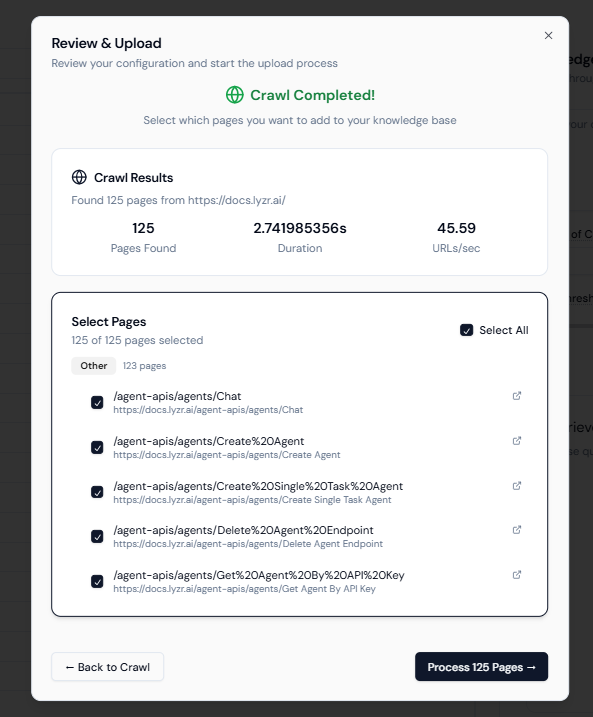 After processing, your documentation pages will be successfully added to your Knowledge Base.
You can upload files in additional to the websites to give your agent more context.
After processing, your documentation pages will be successfully added to your Knowledge Base.
You can upload files in additional to the websites to give your agent more context.
 You can test your agent in the inference screen and fine-tune its instructions based on responses before deployment.